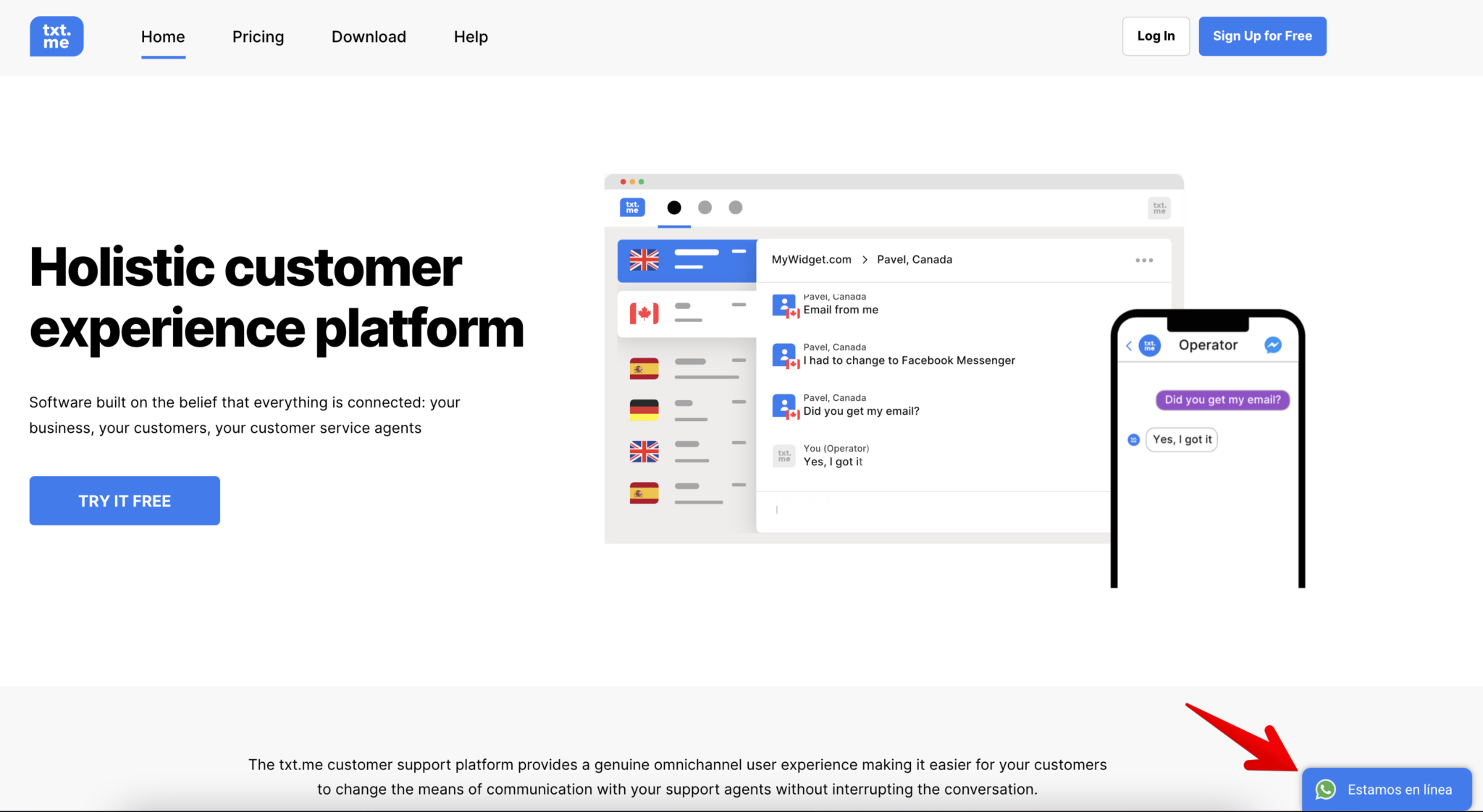
How to set the chat language for your live chat
If your live chat needs to appear in another language, set the chat language and add translations for its phrases. This guide walks through the txt.me widget settings, saving your changes, and checking the result in a browser set to that language.
To add the chat widget to your website, sign up with txt.me. If you already have an account, follow these simple steps:
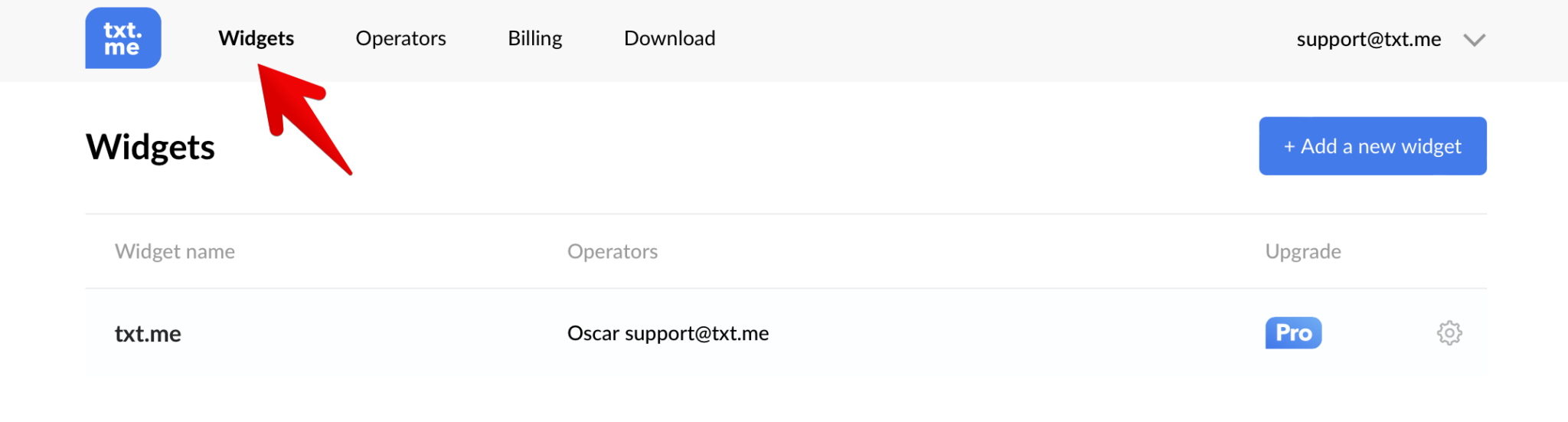
Step 1: Open the Widgets page
Start with signing in to your txt.me account and open the Widgets page. Select the desired widget.
Step 2: Open the chat window customization page
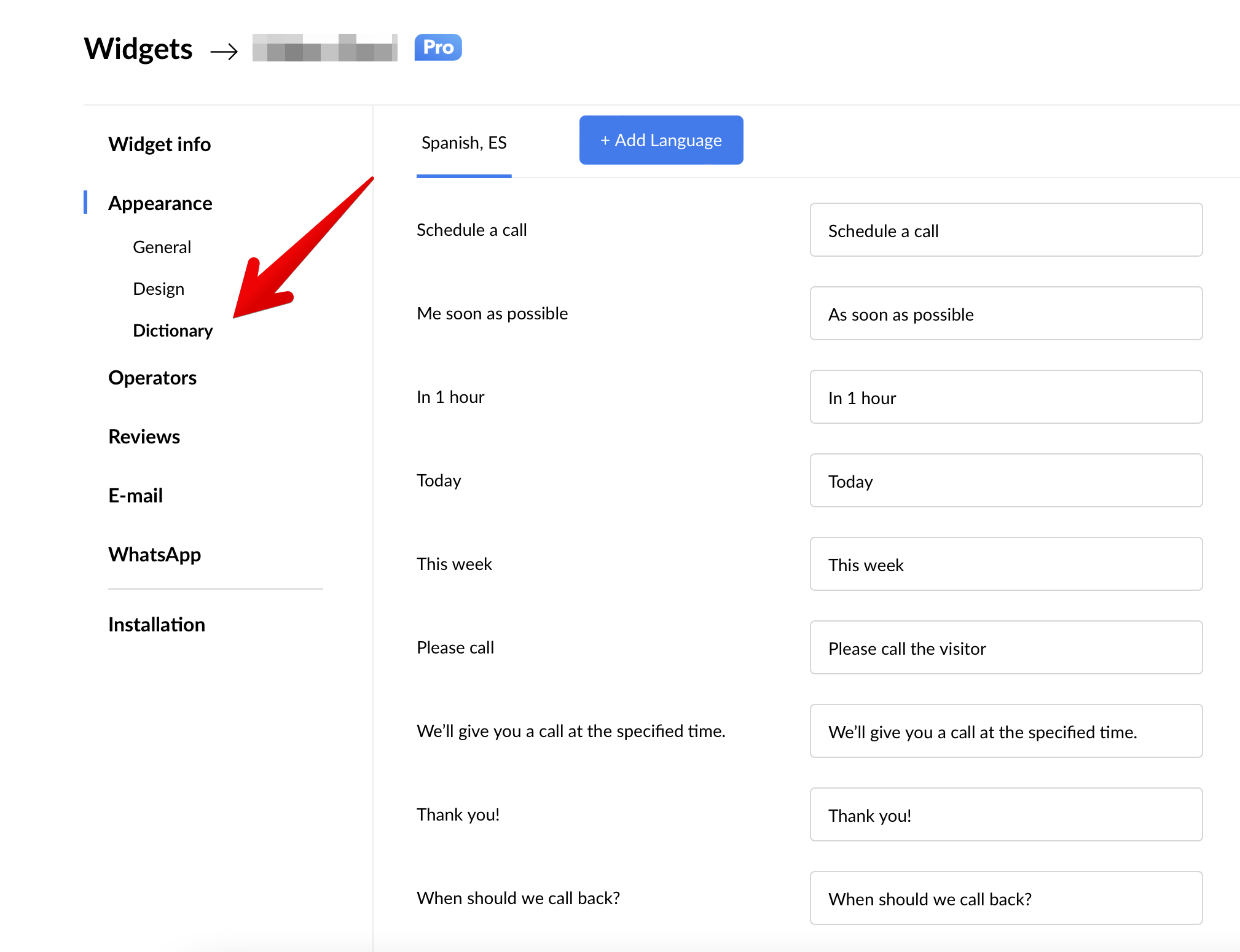
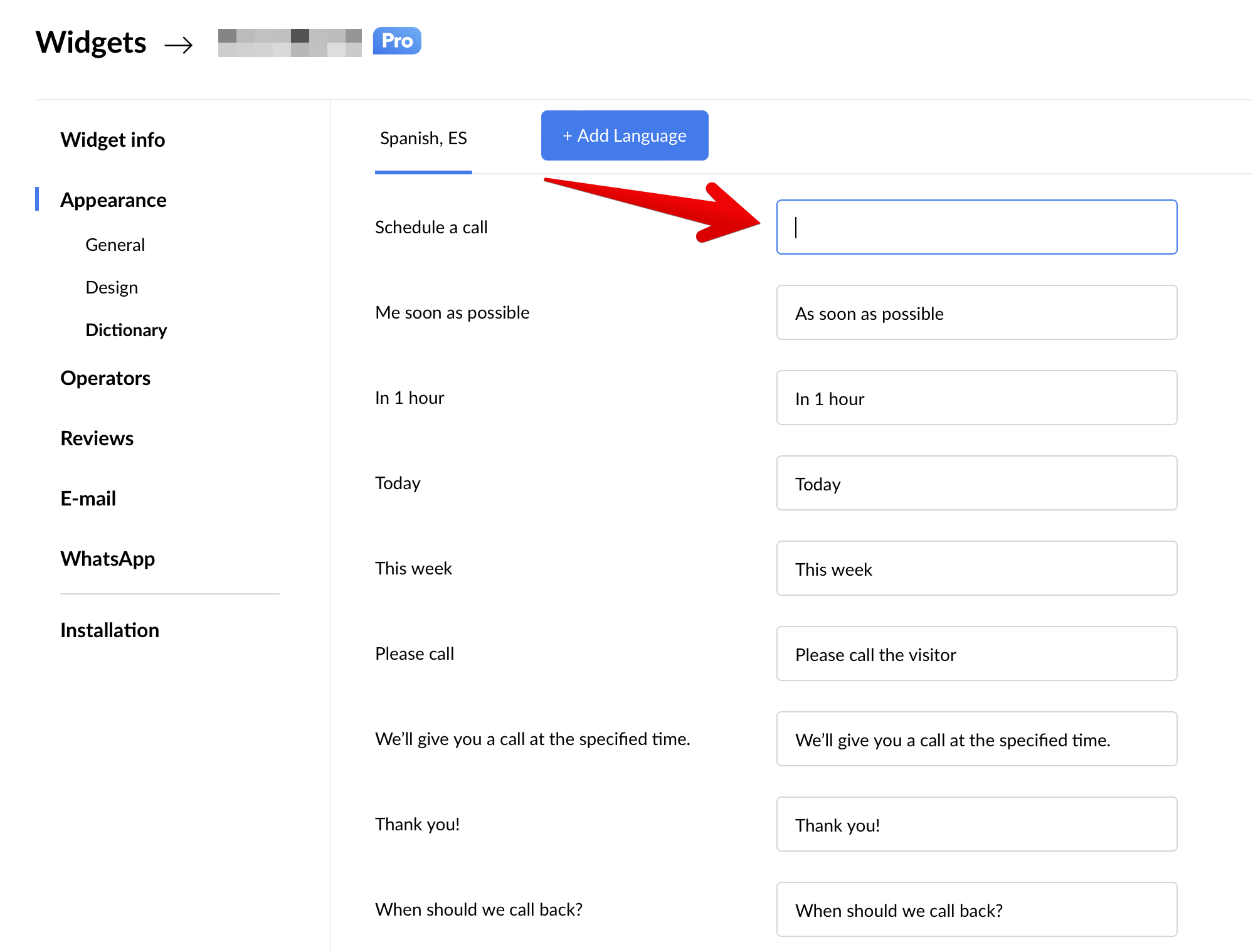
On the next page click on the Appearance tab to open the chat window customization page and you need to click on “Dictionary”.
Step 3: Add a chat language
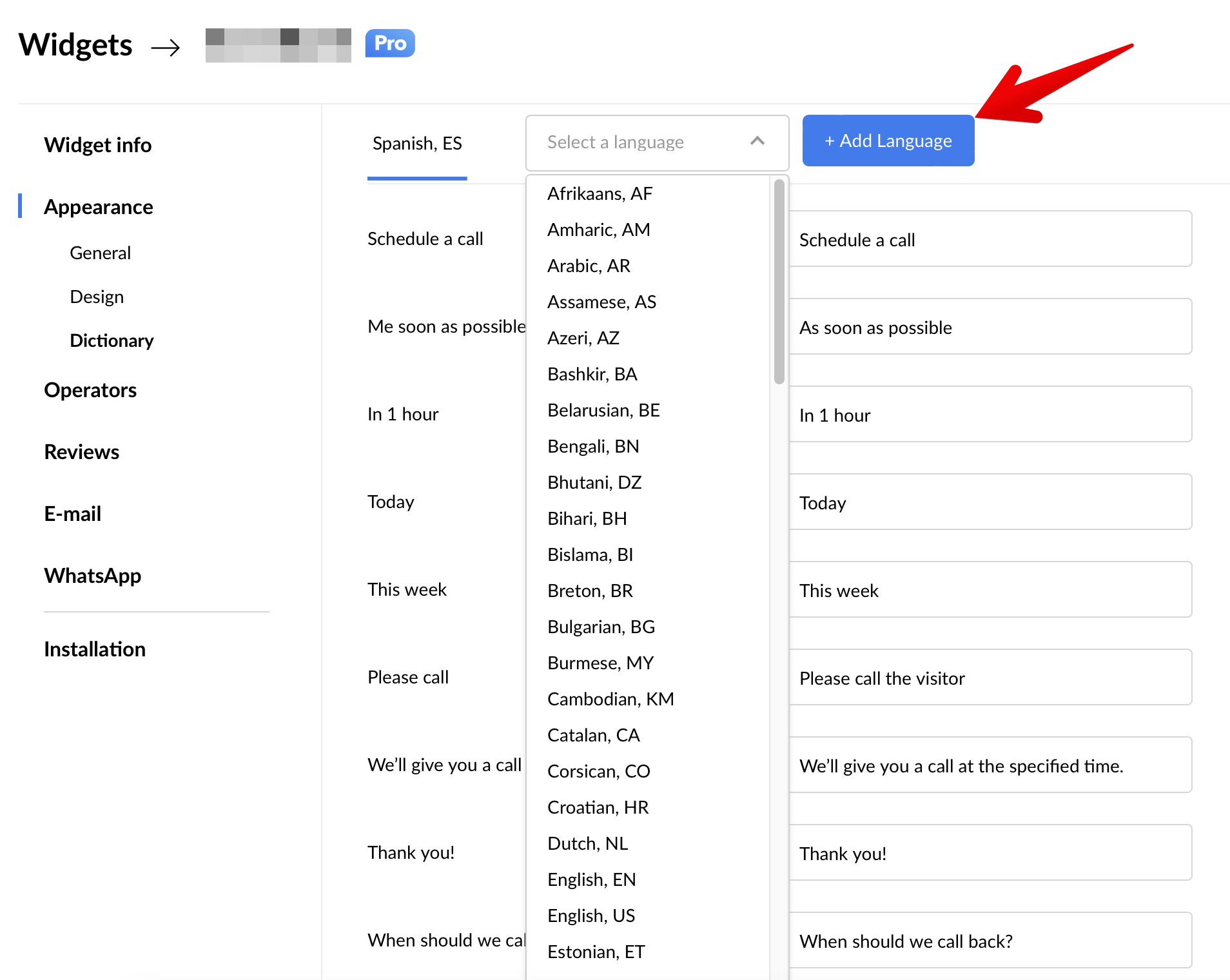
And after you click on “Add Language” in the field you will need to select the desired language for your live chat.
Step 4: Translate phrases
In the fields, you need to formulate a phrase in the language of your choice.
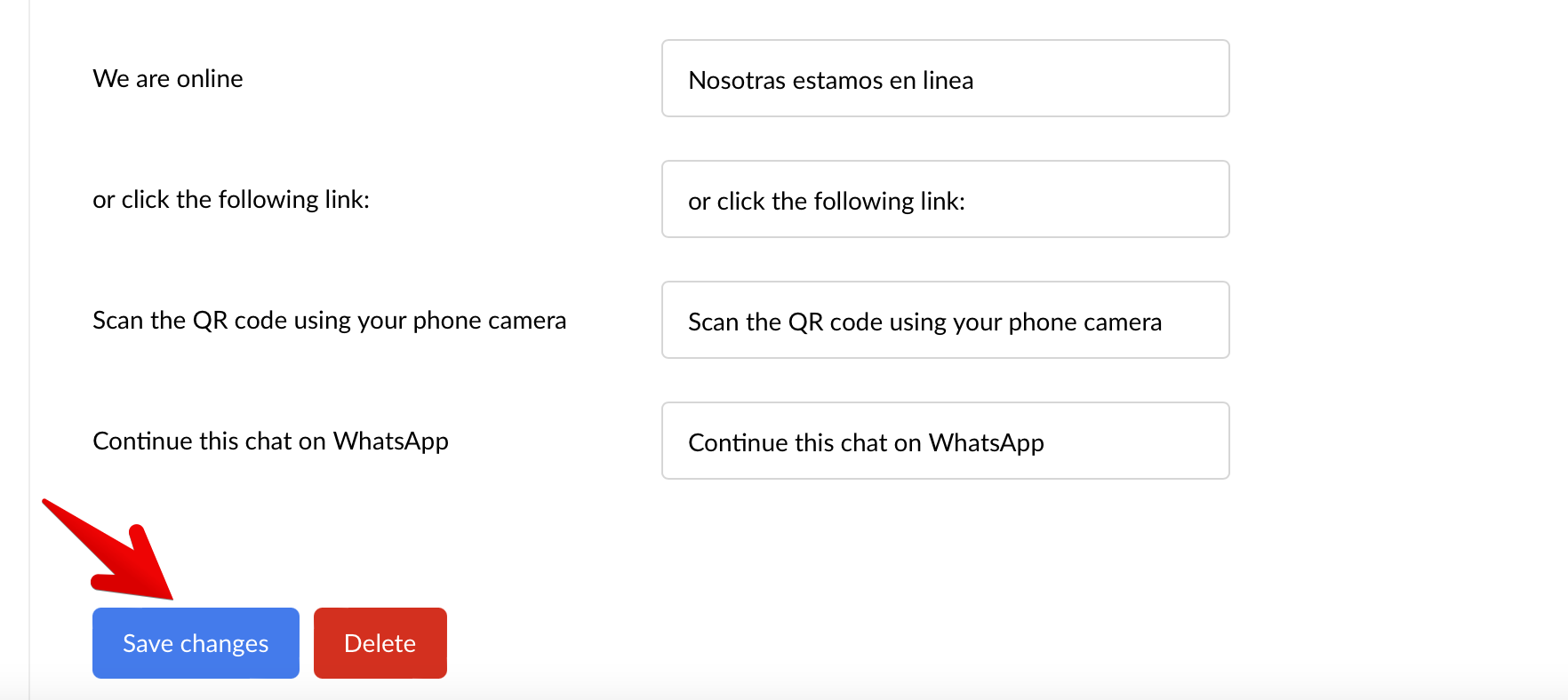
Step 5: Save changes
Step 6: How to check?
You should be aware that chat adapts to your user’s browser language. To test the chat, you need to open a browser in the language you added.