How to Install Live Chat on a MODX CMS Website
Adding live chat to a MODX CMS website means placing the widget code in the right template. Follow these steps to add the txt.me chatbox, save your changes, and check that customer messages reach your txt.me dashboard.
To add the chat widget to your website, sign up with txt.me. If you already have an account, follow these simple steps:
Install txt.me Chat on a MODX CMS Website
Step 1: Login into ModX
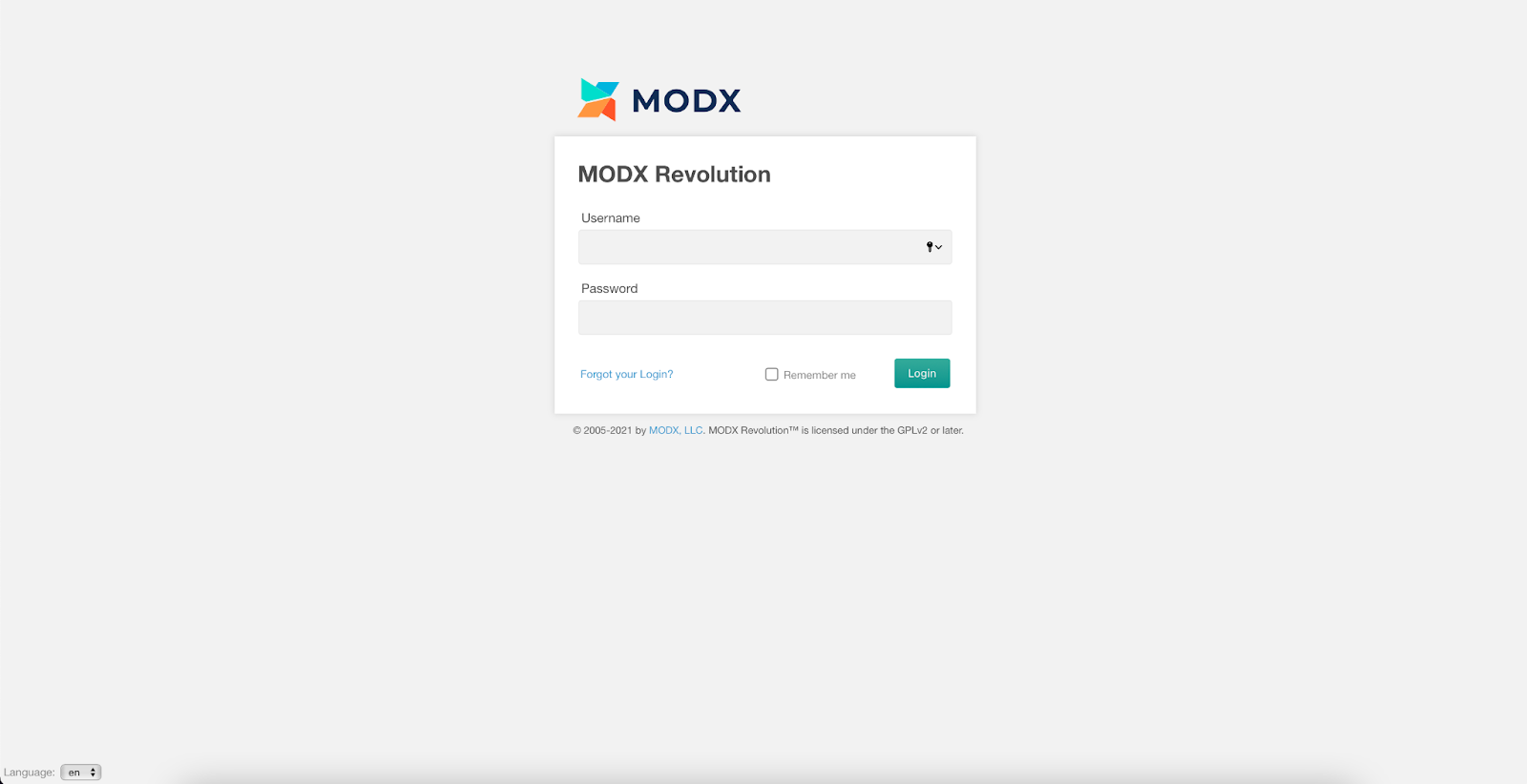
Step 2: Creating a new fragment in ModX
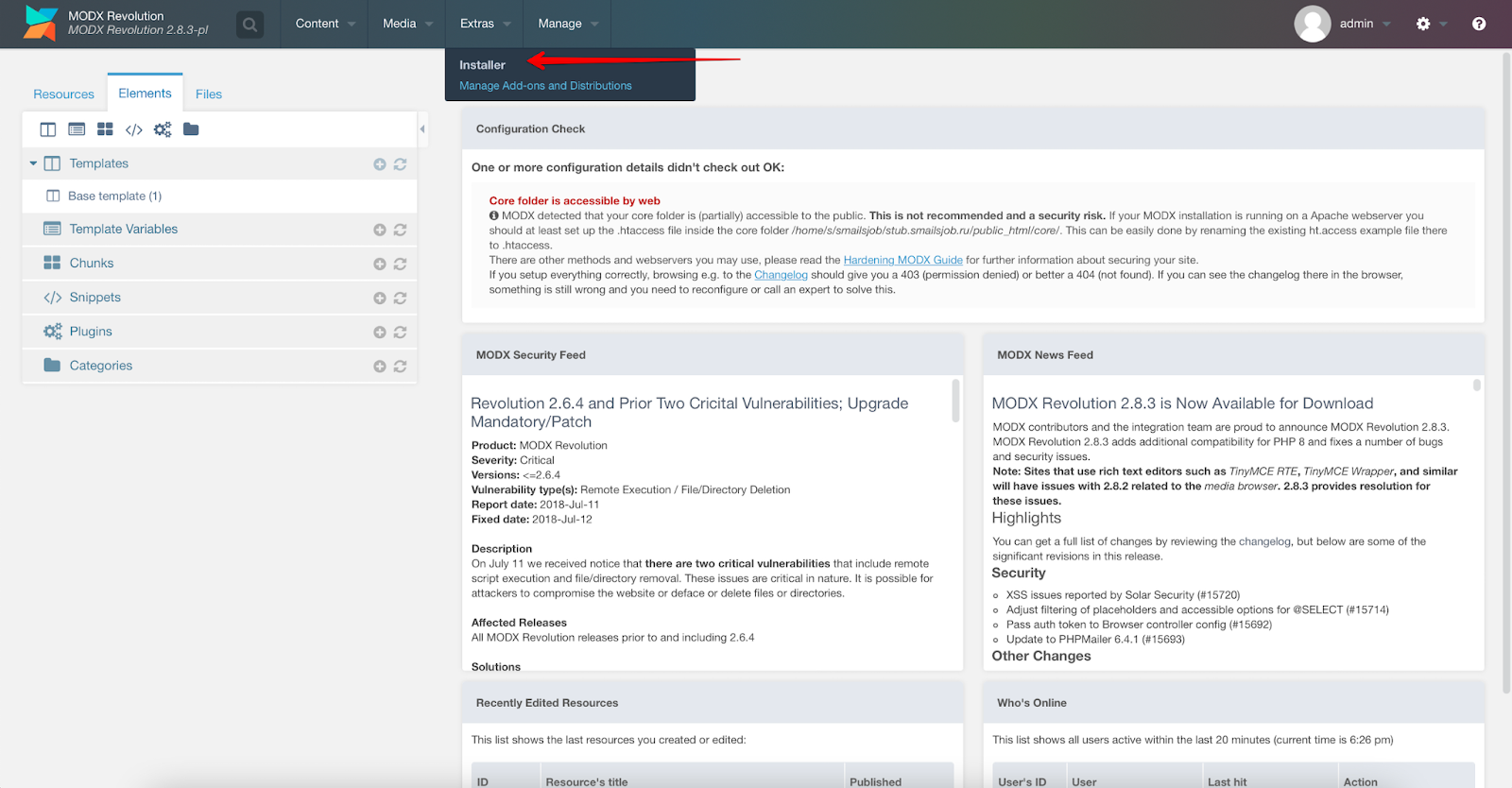
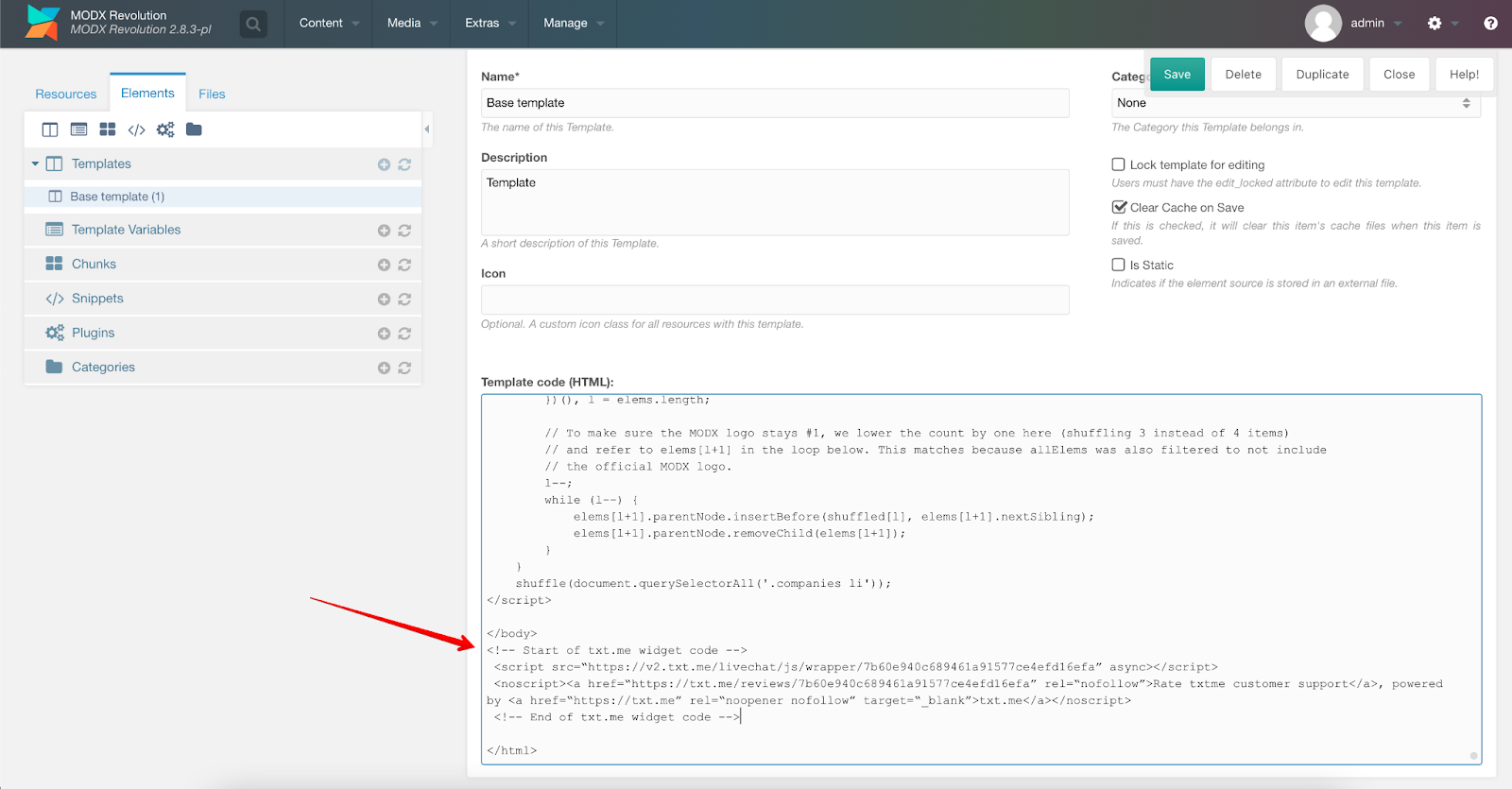
Step 3: Go to Elements > Templates
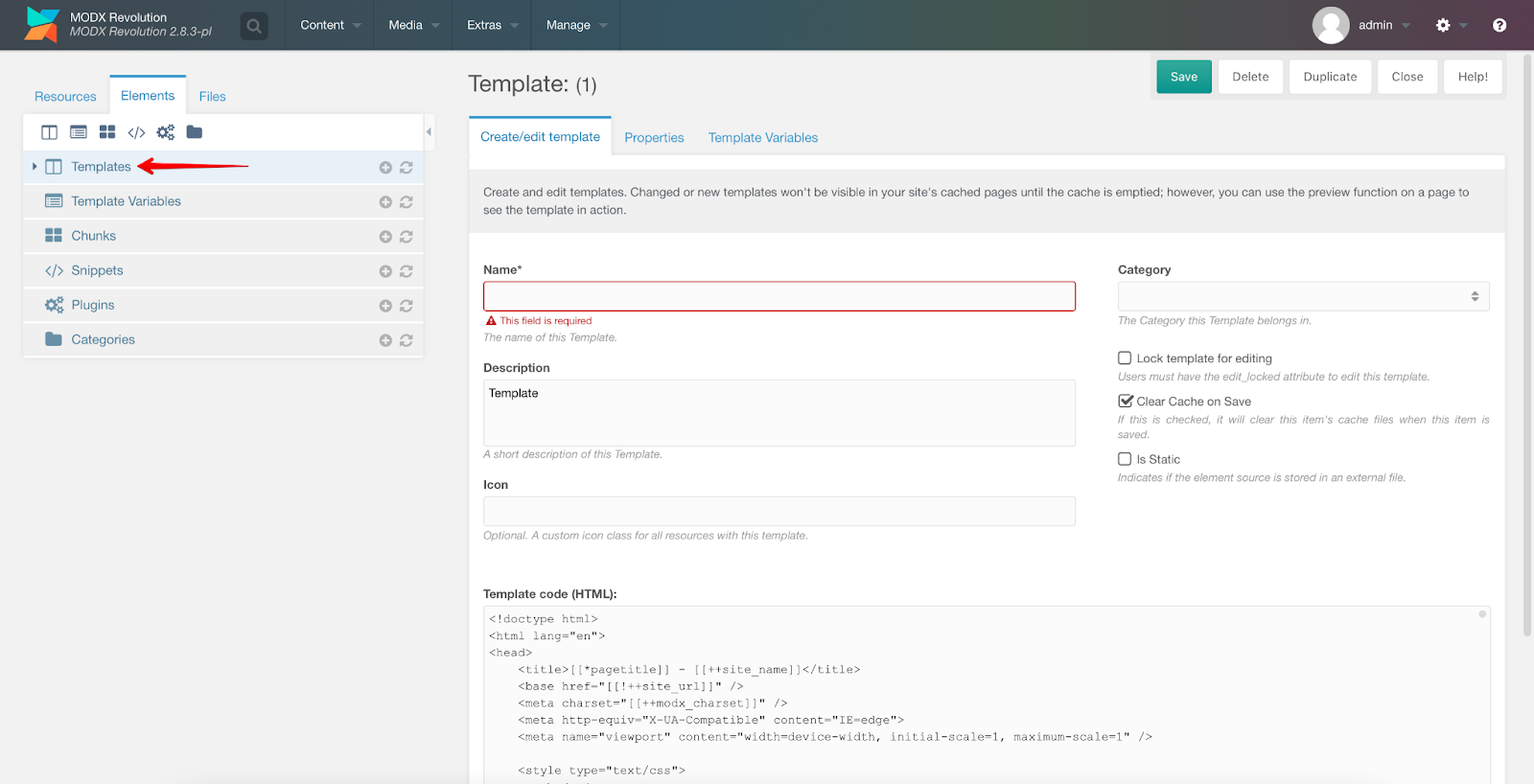
Step 4: Click to “Base template”
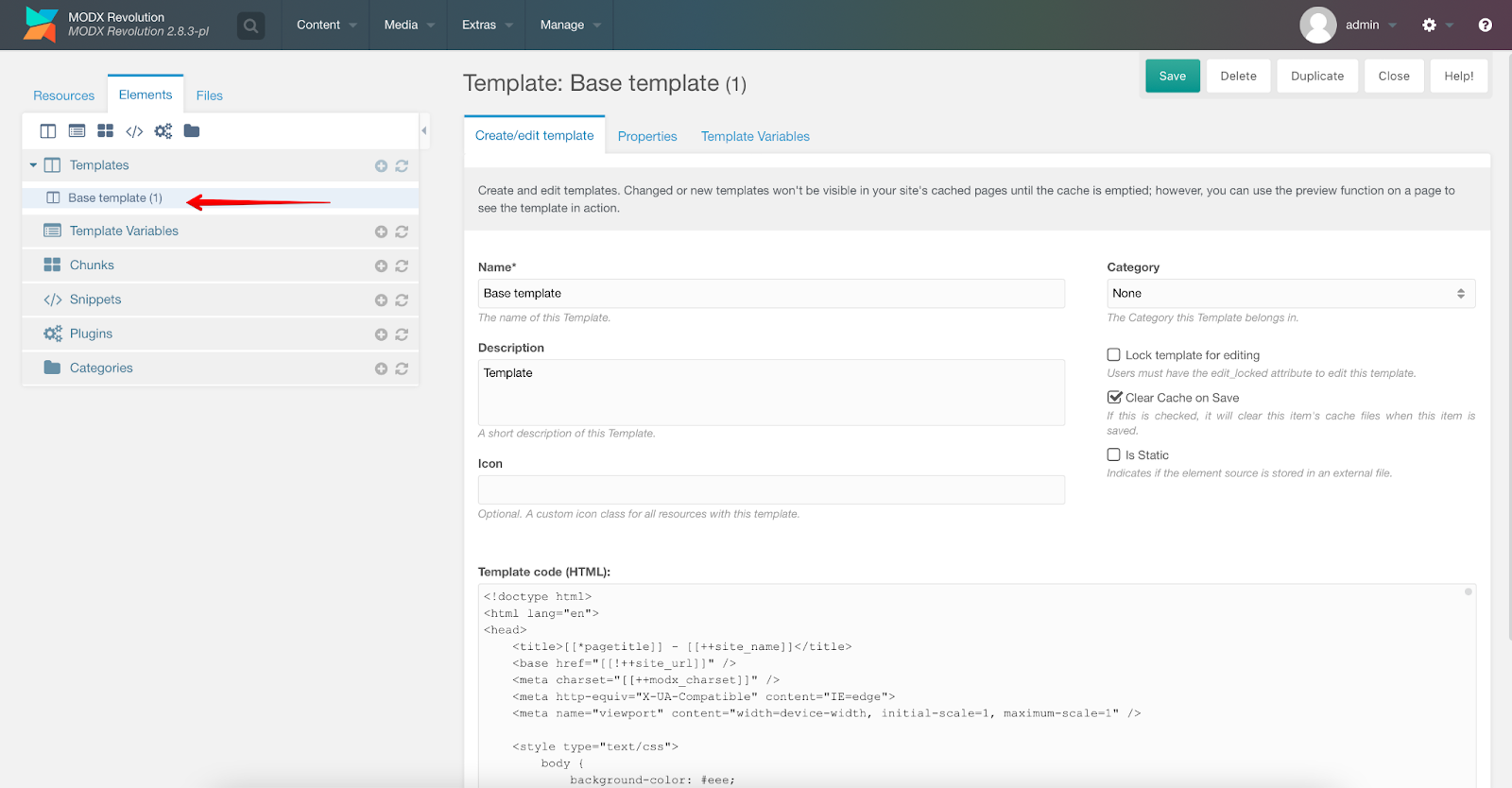
Step 5: Paste in the HTML field, live chat code shortcode just before closing the body tag
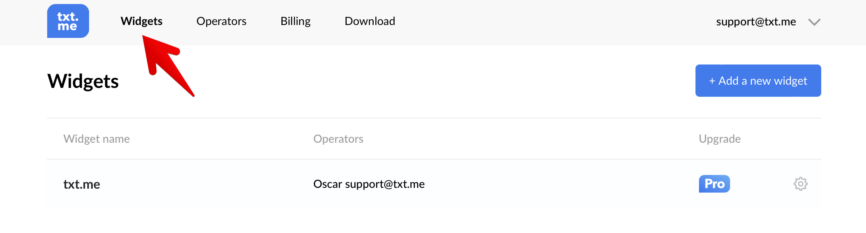
How to find HTM code for live chat widget txt.me
Check out the step by step guide on how to find HTML code for installing live chat widget txt.me on your website.
Step 6: Give your reve chat account id and tracking id and save
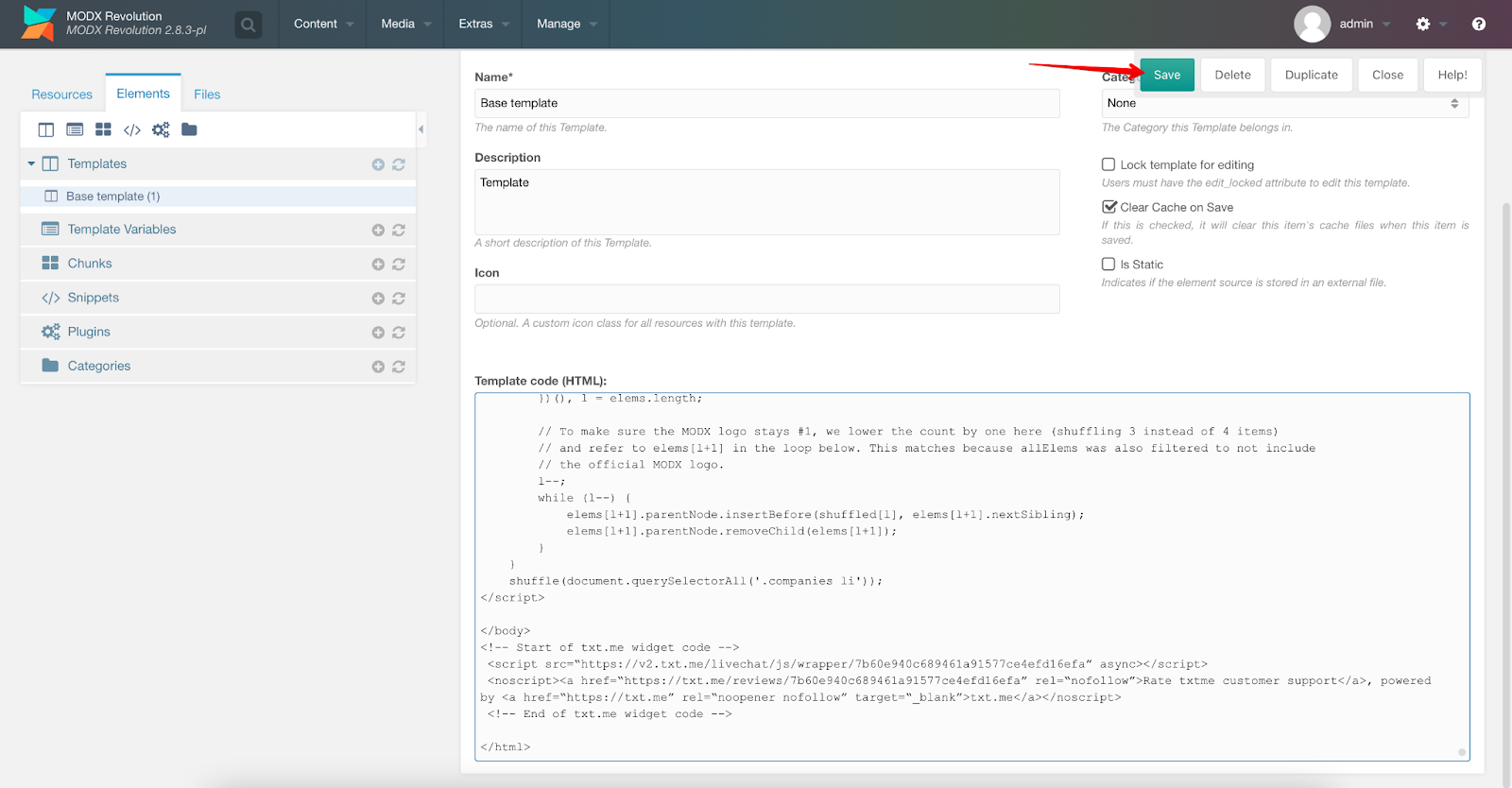
Step 7: Done
Now you can see the chatbox in the bottom right corner of your website ModX.
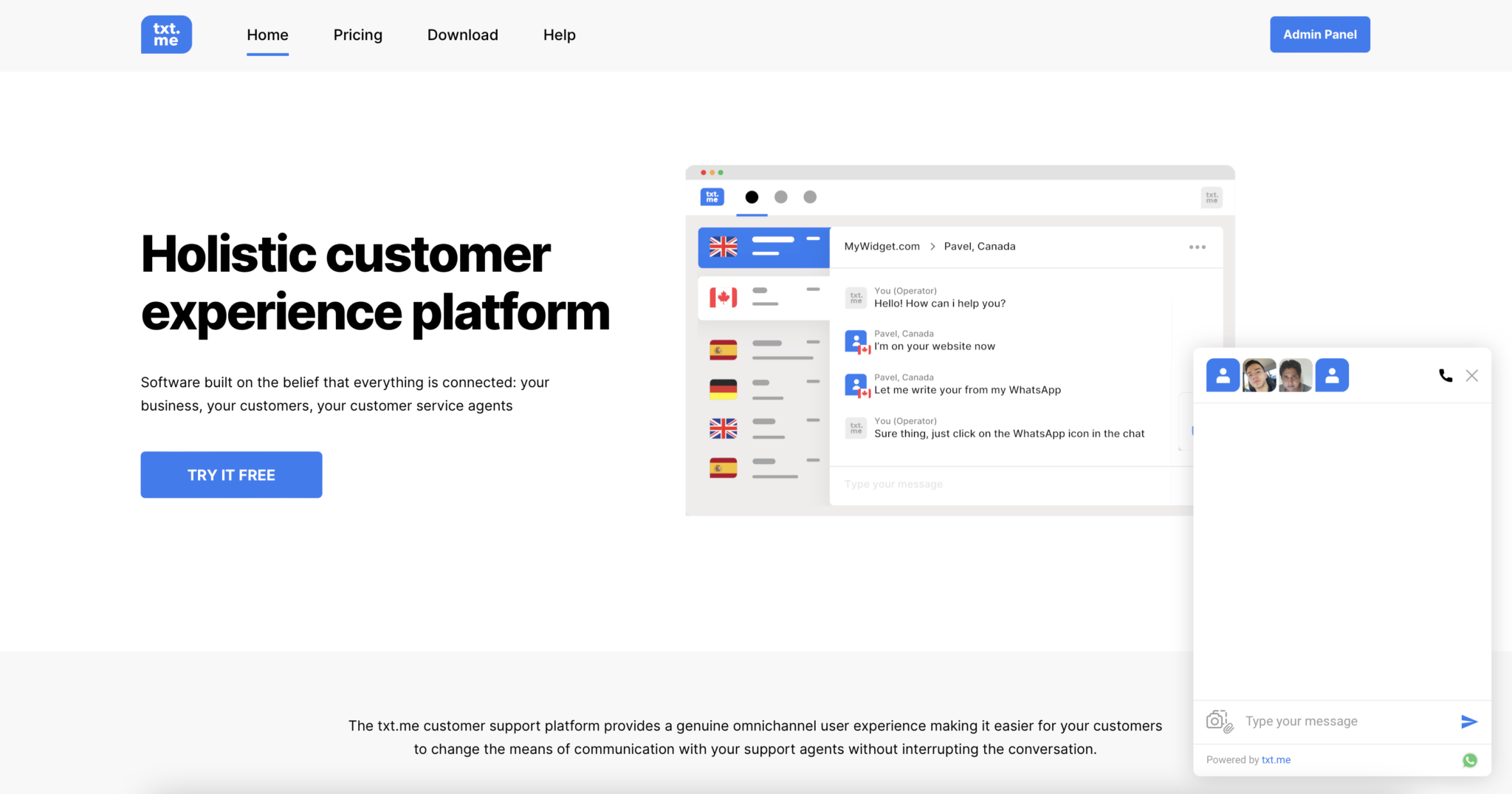
Step 8: Start live chat in ModX
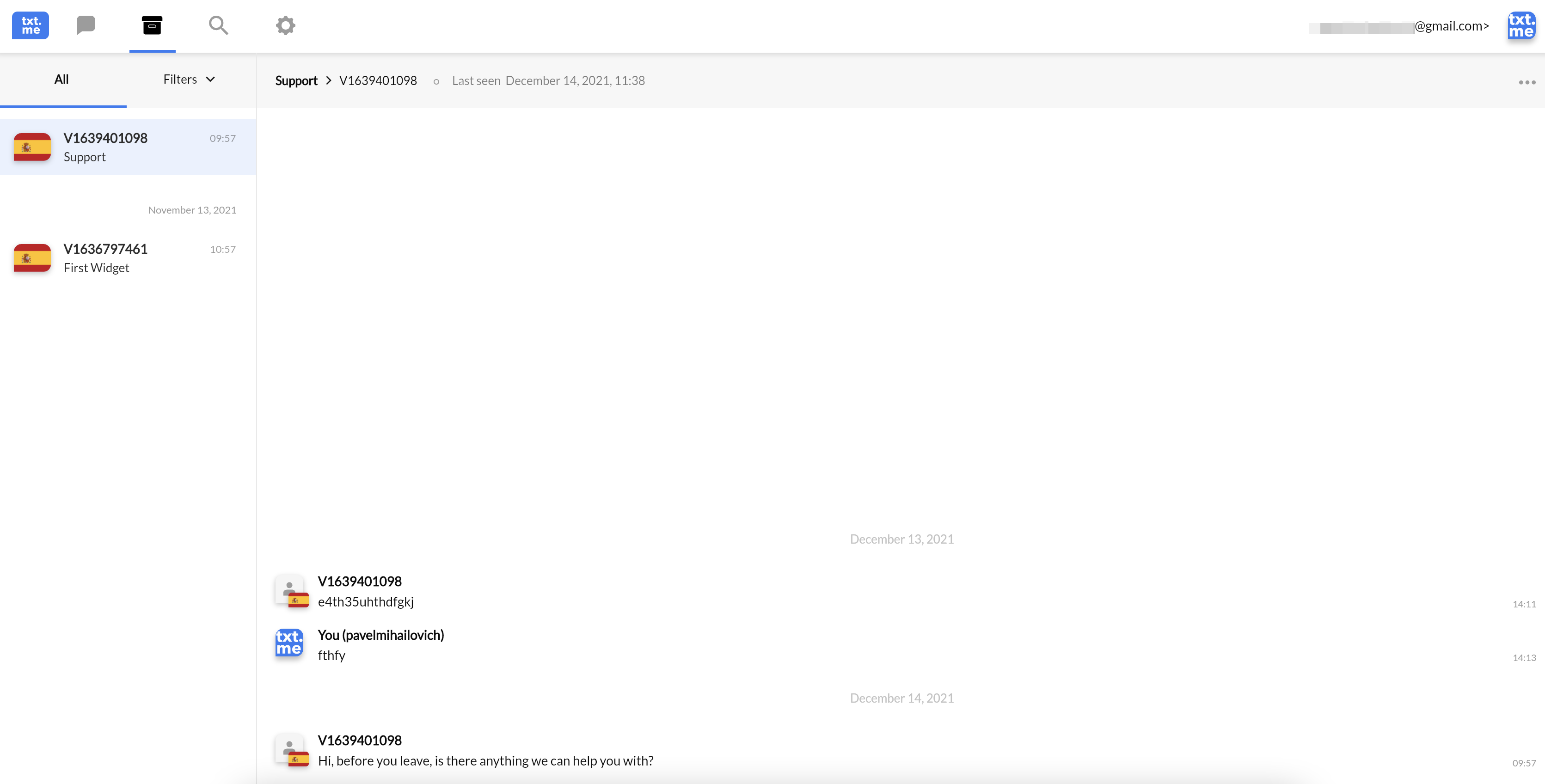
Open the txt.me dashboard to check if the live chat is working for your customers. Ask one of your customer support team to send a message from the chatbox. Then, make sure that you receive it on your Web Version txt.me.
Now chattxt.me is added to ModX, and you can start providing your customers with excellent support. Hopefully, you have found this article helpful, but if you have any additional questions, feel free to start a chat with us – we are available 24/7/365!