How to Install Live Chat HTML Code on Your Website
Adding live chat HTML code to a website can be confusing, especially if you use a content management system. This guide shows where to find your txt.me widget code and points you to installation steps for popular CMS platforms or a standard HTML setup.
Register to get your live chat HTML code
The first step is to get an account at txt.me.
Click on the Sign-Up link, enter your email, and we will send you access details right away!
Now let’s move on to some technical stuff.
Do you use any CMS?

If not, jump right away to the installing HTML code section.
Otherwise, click on your CMS from the following list for specific guidance.
- WordPress
- Shopify
- Joomla
- Jumpseller
- Webnode
- WooCommerce
- Weblium
- BigCommerce
- SquareOnline
- Ecwid
- Prestashop
- WiX
- Bitrix
- Opencart
- Tilda
- WiziShop
- ModX
- Squarespace
- Blogger
- Any website with Google Tag Manager
How to install the chat box for websites
1. Open the txt.me dashboard, then the Widgets page
Head over to your txt.me dashboard and open the Widgets page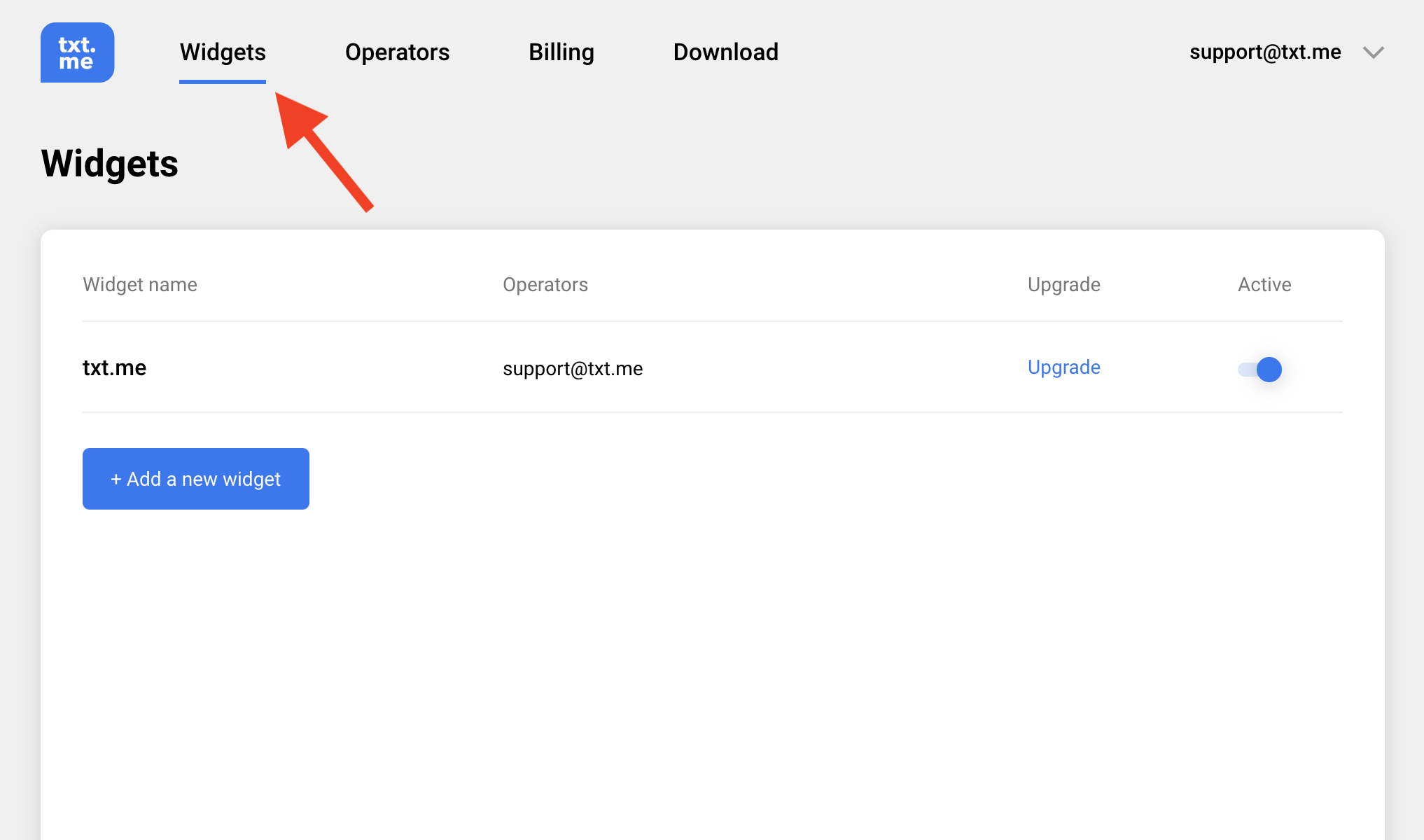
2. Select widget
Click on the widget you want to install. If you haven’t created a widget yet, please create it by clicking on the Create Widget button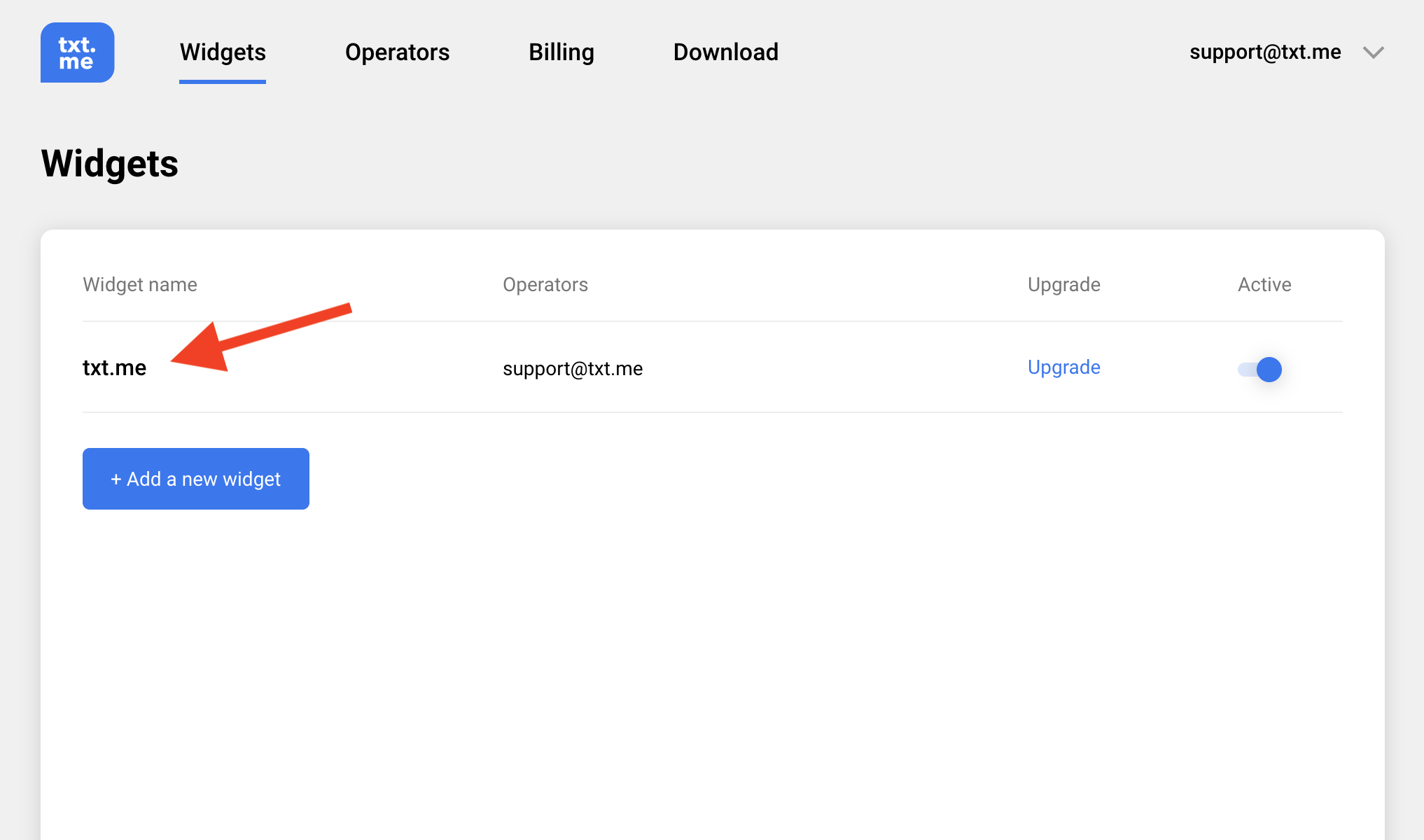
3. Click on the Installation tab
On the Widget’s page, open the Installation tab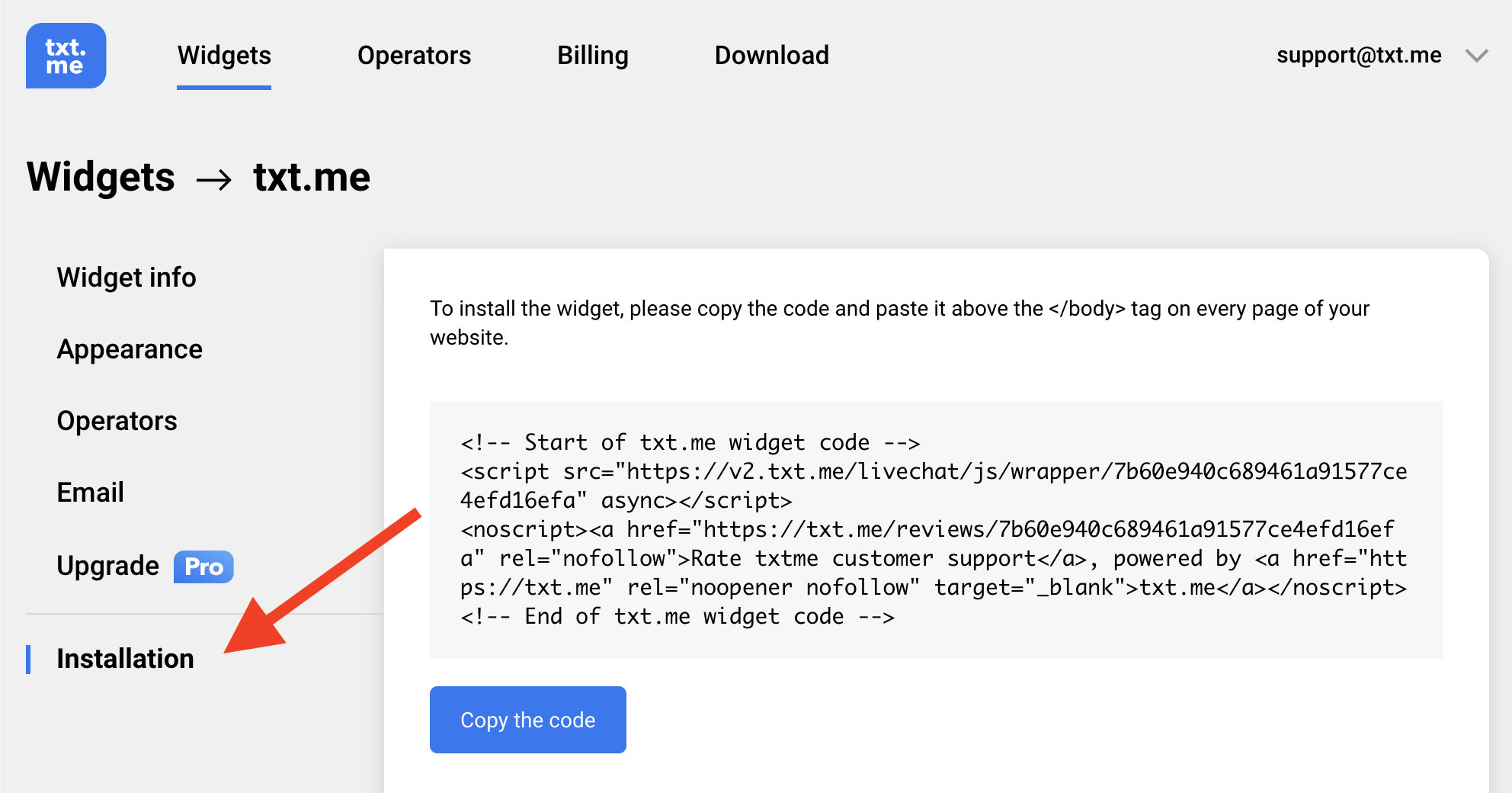
4. Copy the html code -> Paste the code in the </head> section
Copy the chatbox html code to your clipboard using the Copy the code button or ctrl+c on your keyboard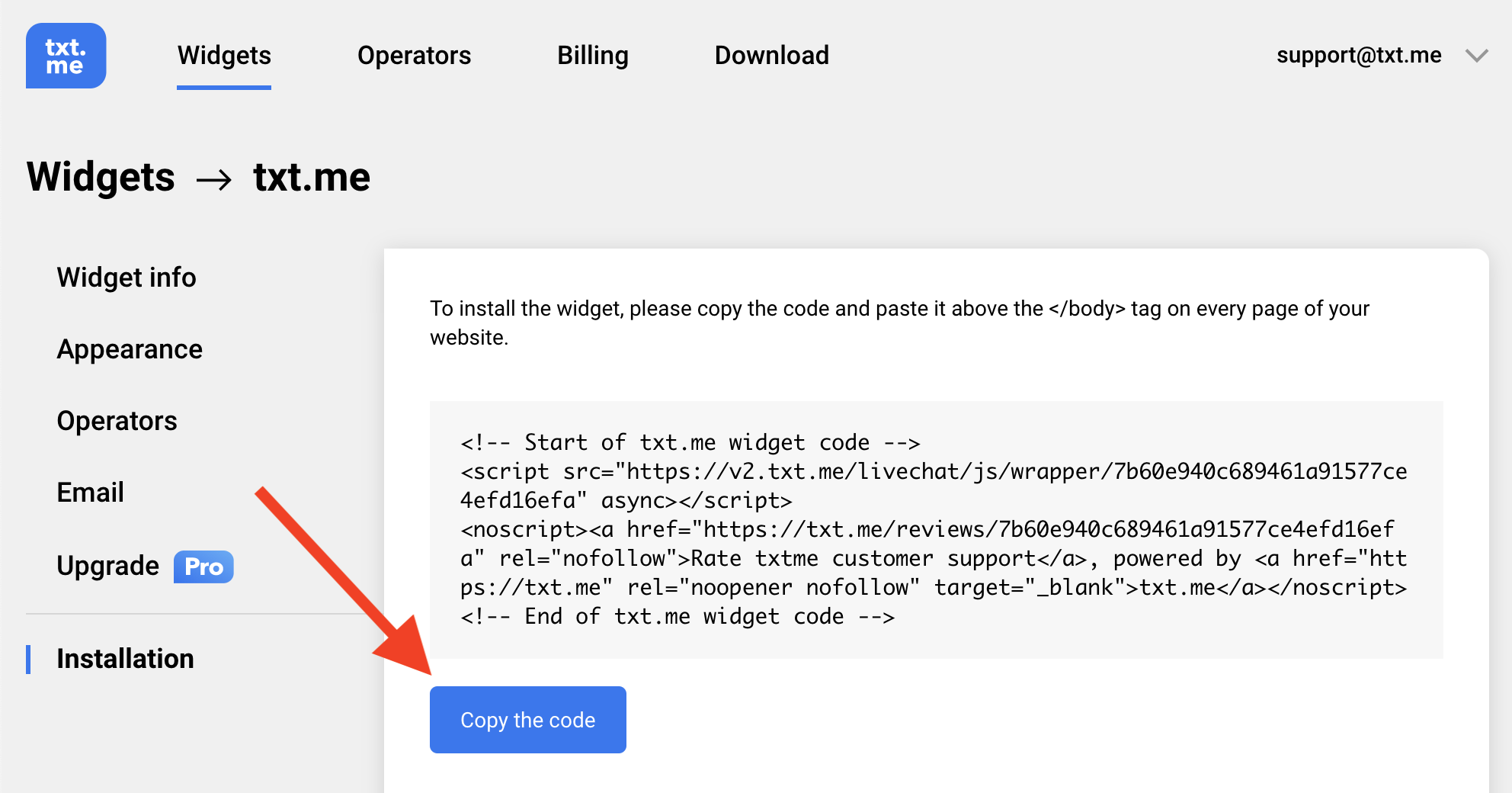
Paste the code to all the pages of your website in the </head> section